There are many ways you can take screenshots in windows 11, all of them are listed in the table below.
| 1 | Snipping tool |
| 2 | Windows + Shift +S |
| 3 | PrtScn |
| 4 | Windows + Prtscn |
| 5 | Alt + Prtscr |
| 6 | Third party application |
Snipping Tool
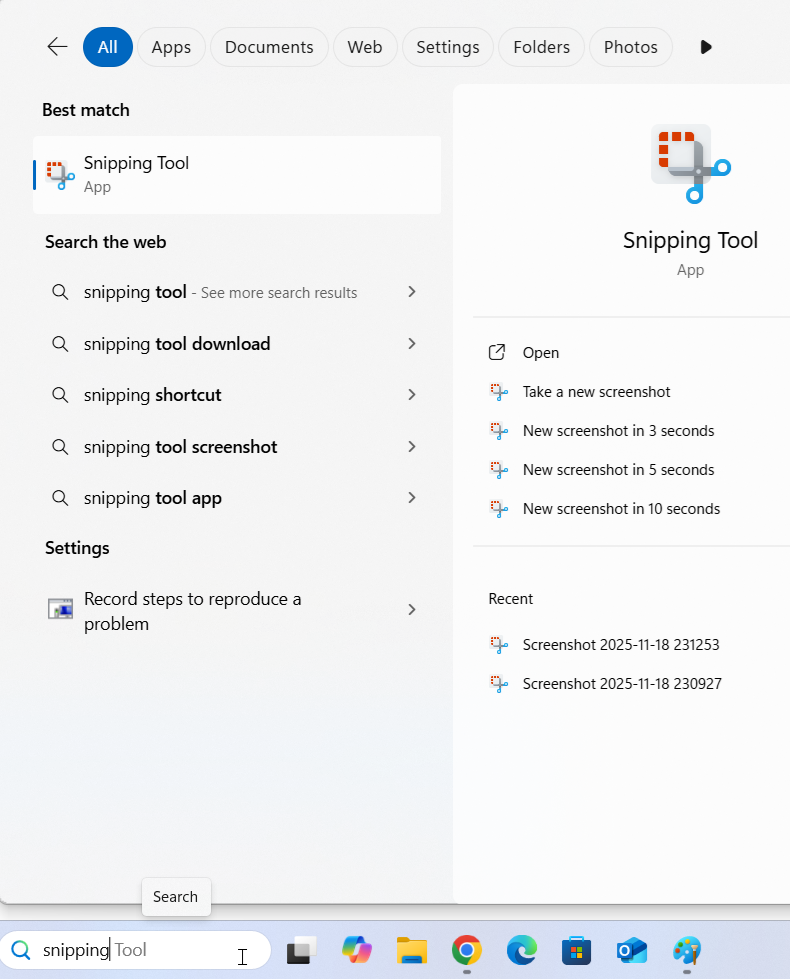
To open snipping tool you can either
- Press -> Windows + Shift +S or
- Search -> “Snipping Tool” in search bar.
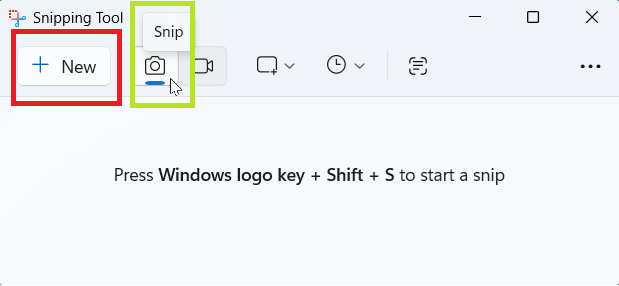
Step1: Click on “New” to take screenshot. (Make sure you have selected “Snip”)
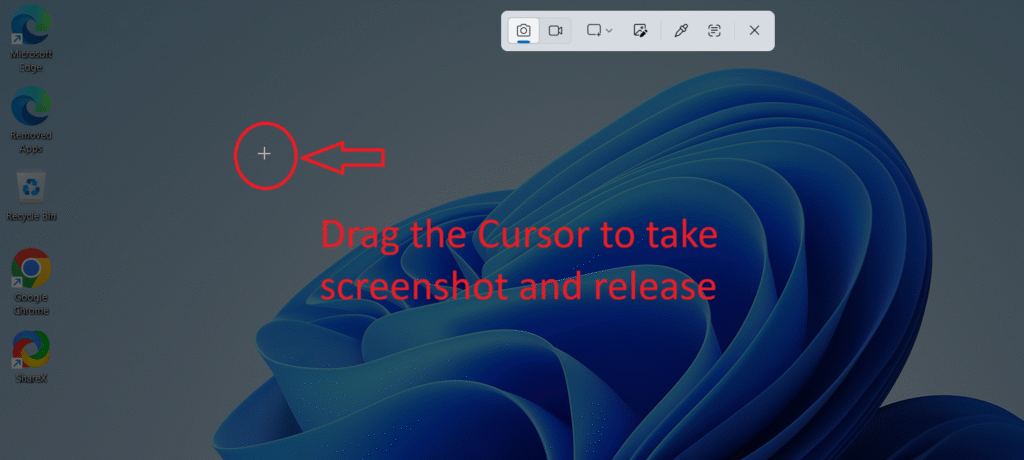
Step2: Drag the cursor to select the screenshot area. Release the mouse to complete the screenshot.
Now screenshot will appear in the snipping tool window.
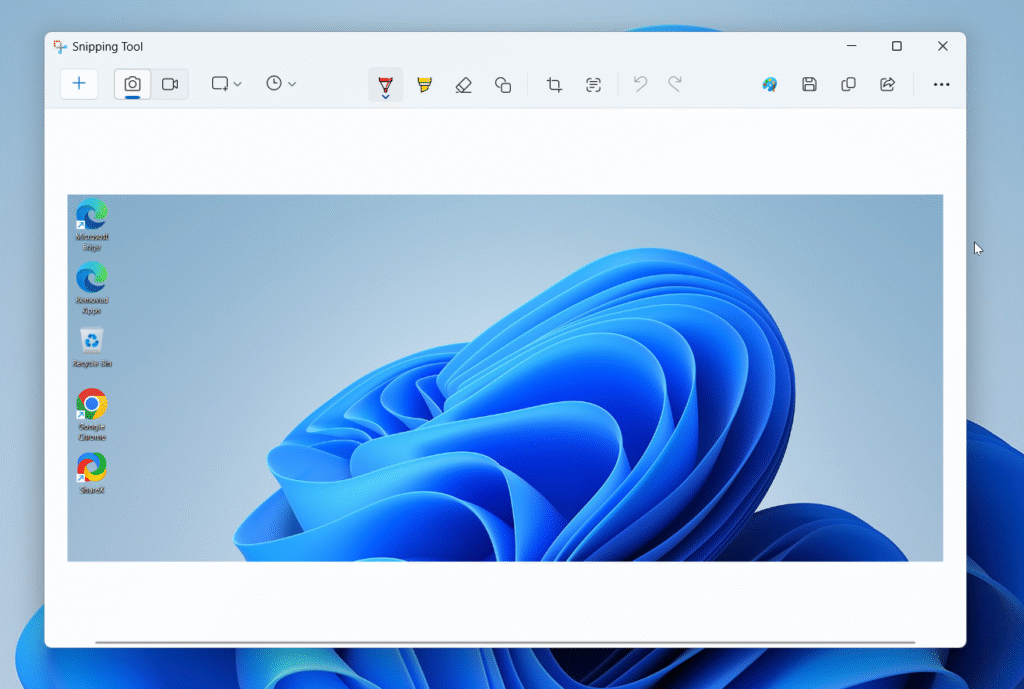
On this window, you can
- Add text using Pen
- Highlight text using Highlighter
- Add Shapes
- Extract text from the image
- Crop the image
- Edit using Paint (For more advanced options)
You can copy this screenshot in clipboard to use it further in other applications or can “Save” in the File Explorer.
PrtScn
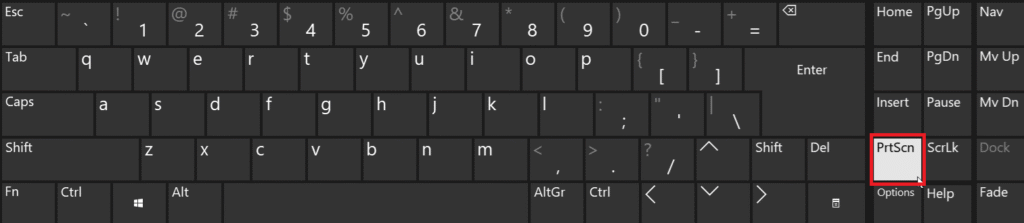
PrtScn can be used in two ways, depending on the selection in the keyboard settings (as shown below)
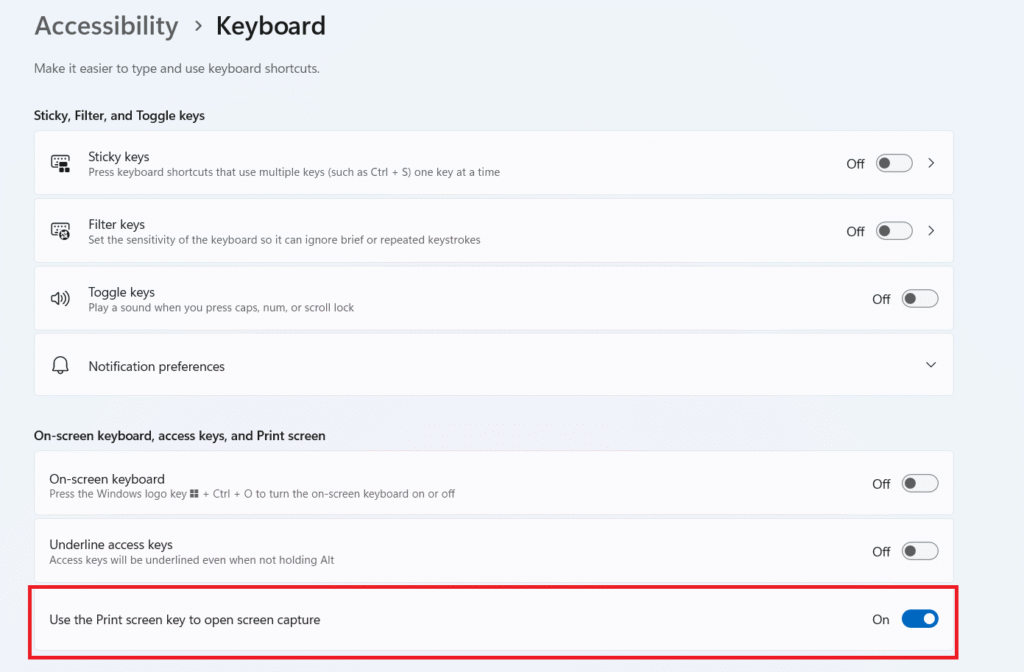
To open above page, navigate to Settings -> Accessibility -> Keyboard
If this option is enabled, then PrtScn is used to capture screenshot using snipping tool.
Otherwise PrtScn captures the whole desktop and is copied on the clipboard.
Windows + PrtScn
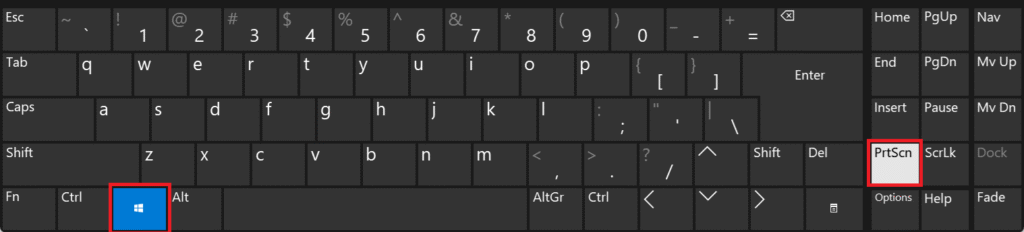
Press keys windows + PrtScn to take screenshot of full screen (including multiple desktop screens)
Windows screen will blink for a second and then the captured screenshot will be saved on the clipboard, which then can be used for other applications.
Alt + PrtScn
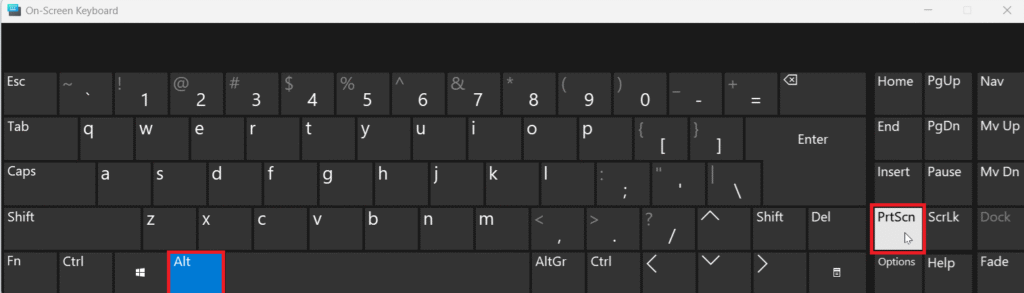
Press keys Alt + PrtScn to take screenshot of active windows screen only.
The captured screenshot will be saved on the clipboard and can be used for other applications.
Third Party Applications
Many third party applications are available which helps to take screenshot and also provide advanced features. The best one according to us is ShareX.
You can download ShareX from their official website link.
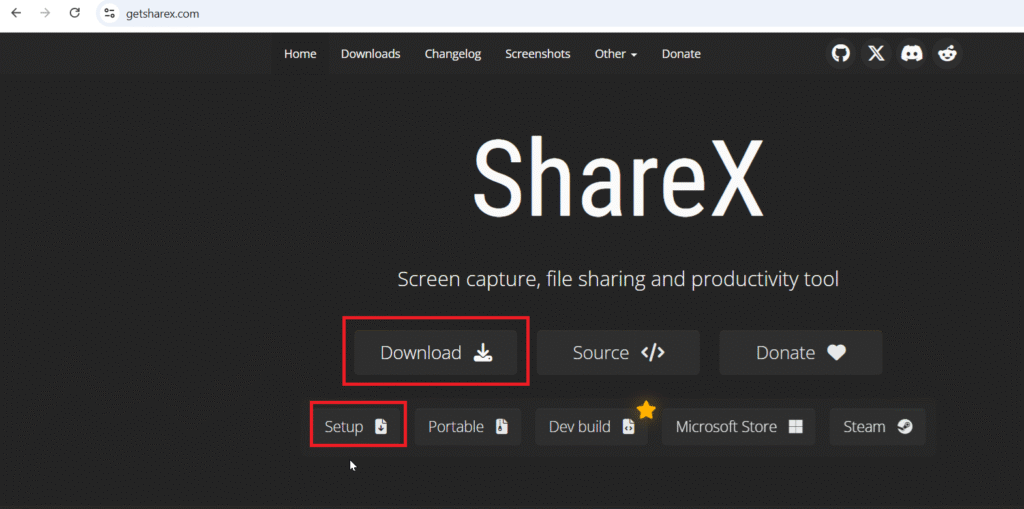
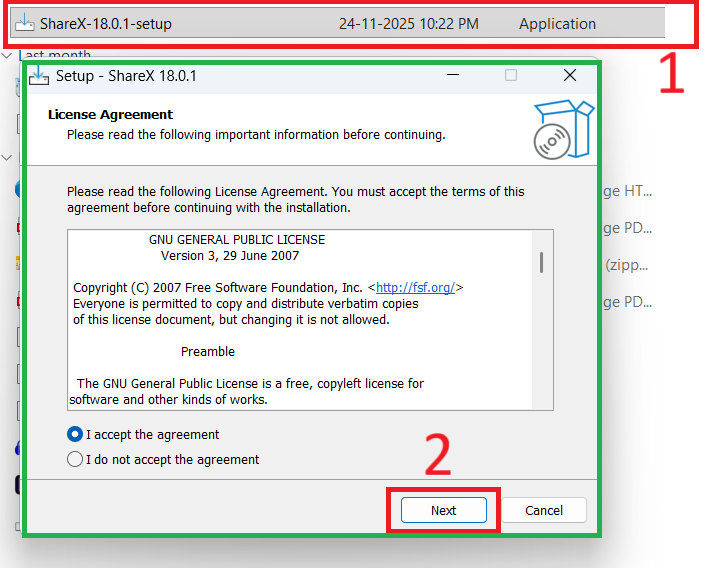
Open the setup and follow procedures to install the setup.
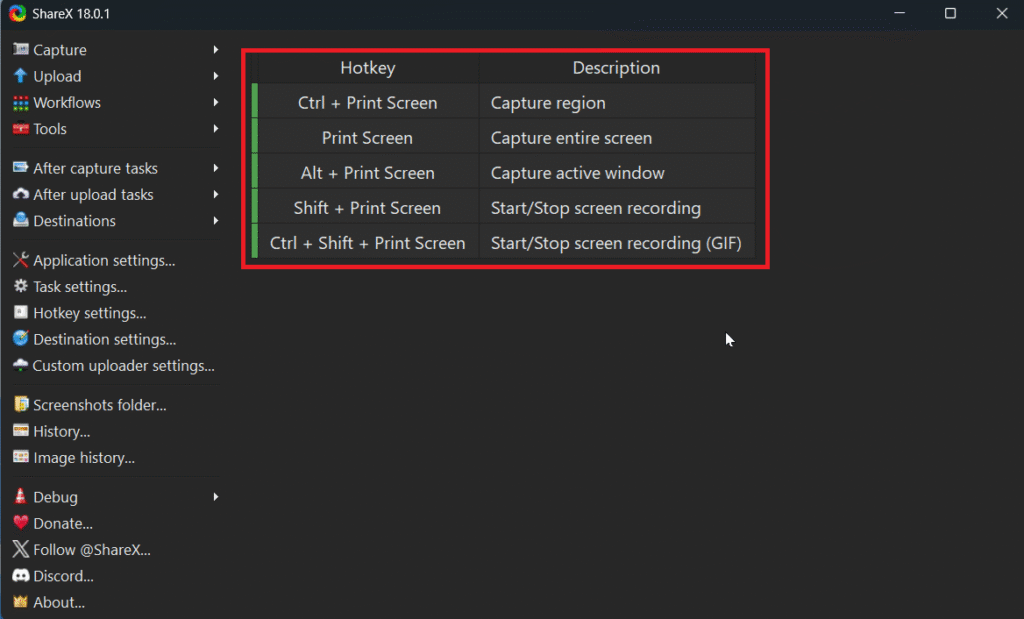
After installation, open ShareX. On the main screen it lists HotKeys for taking screenshot. Use any of these hotkeys to take screenshots as per your convenience.