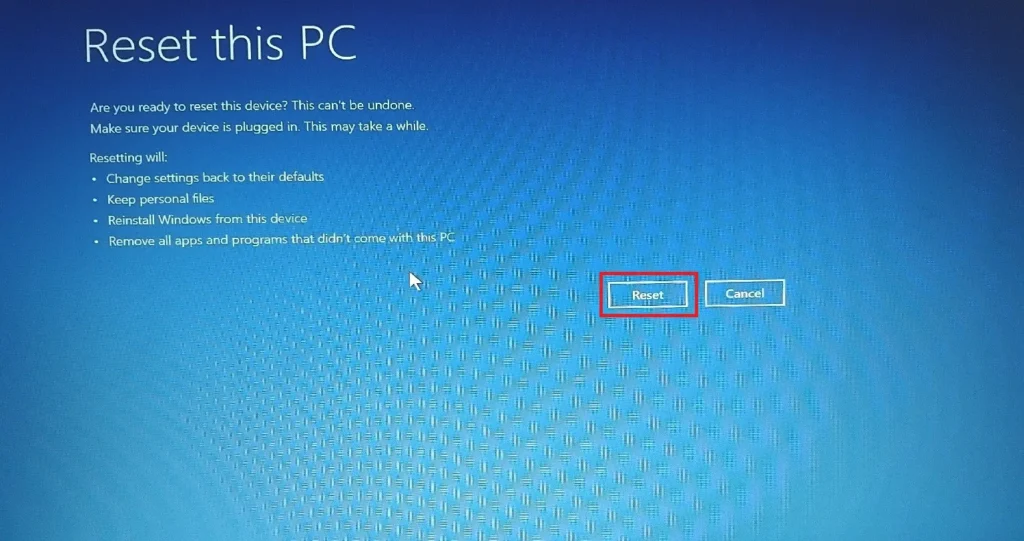
Reset is introduced to erase and reinstall the windows, without using any external recovery drive. Its a very quick process when compared to latter. You also get to choose to keep files before erase or remove everything.
If your windows device is running slow or stuck in windows startup or you want to sell your device then performing reset is the right option.
You can reset your device using following methods-
| Methods | When to use |
|---|---|
| Reset using Settings | When windows running slow or you would like to sell your device |
| Reset using Windows Recovery Environment (RE) | When windows stuck in startup or not able to boot up. |
Method1: Reset using Windows Settings
Step 1: Search for “Reset this PC” in search bar and click on it. (see below image on left side)
OR
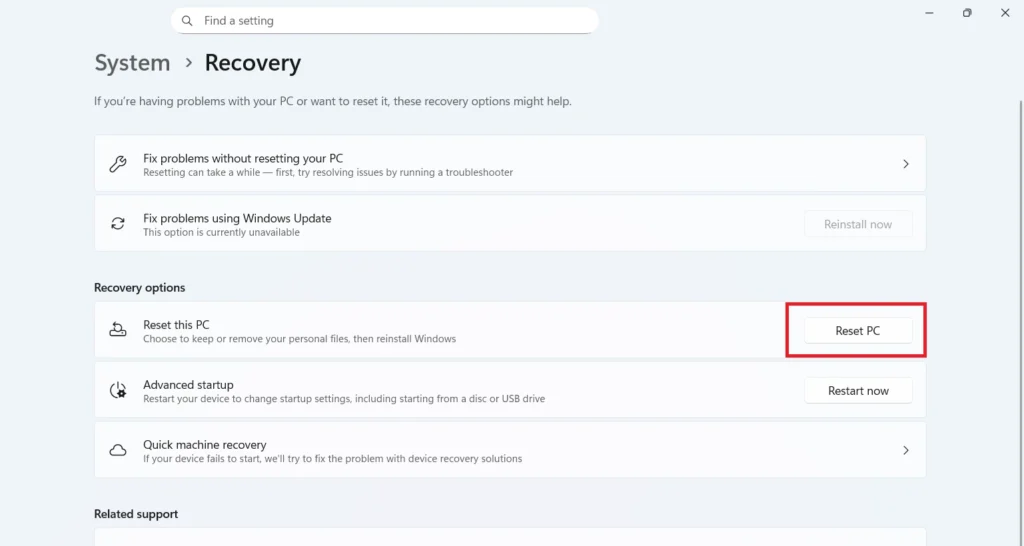
Open windows settings and navigate to System > Recovery. (see below image on right side)

Step 2: Click on “Reset PC”.
Step 3: Here you have 2 options on how you would like to handle files post reset.
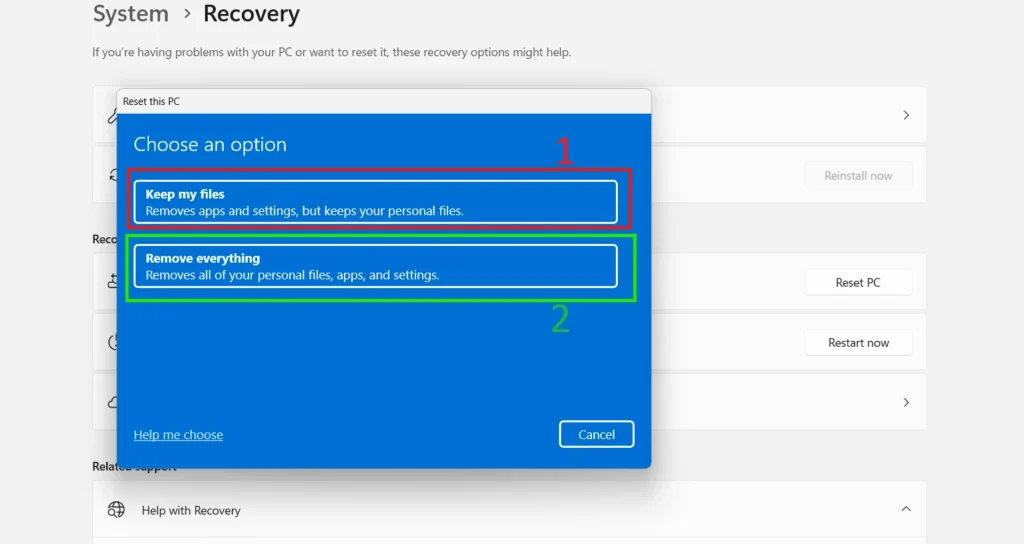
Option 1: Click on “Keep My Files” to erase and reinstall windows 11, and preserve your data in folders –
- Documents, pictures, music, etc. (C:\Users\YourName)
- Other partition data e.g. data from D or E drive (Hard drives or SSD’s)
This option will remove all applications, drivers installed on your device.
Option 2: Click on “Remove Everything” to erase and reinstall windows 11 and remove all data from C Drive along with removing all applications and drivers earlier installed.
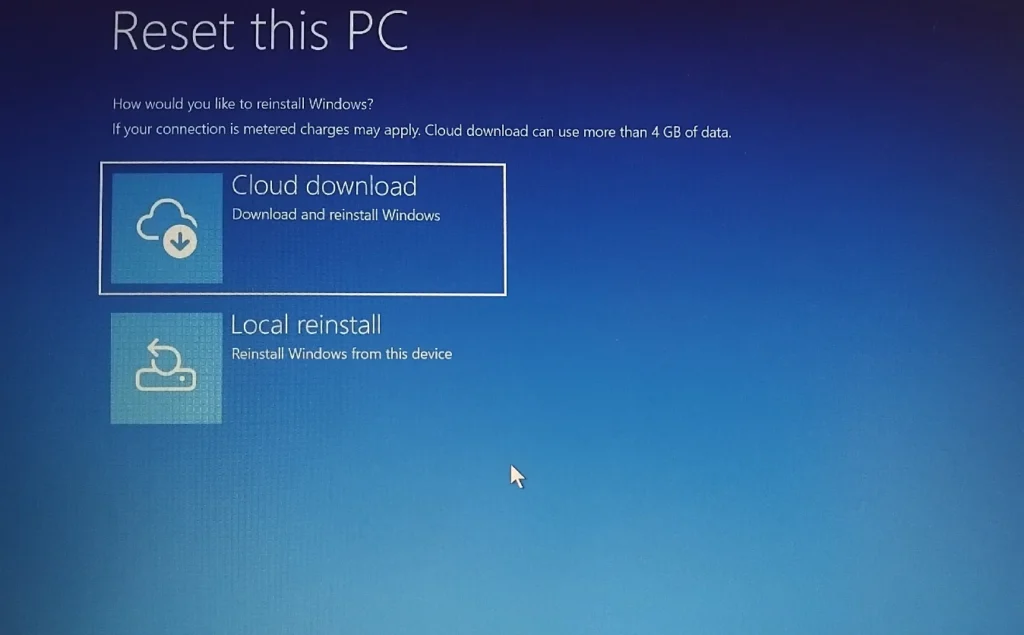
Step 4: Here you have 2 options to choose how you would like to reinstall windows
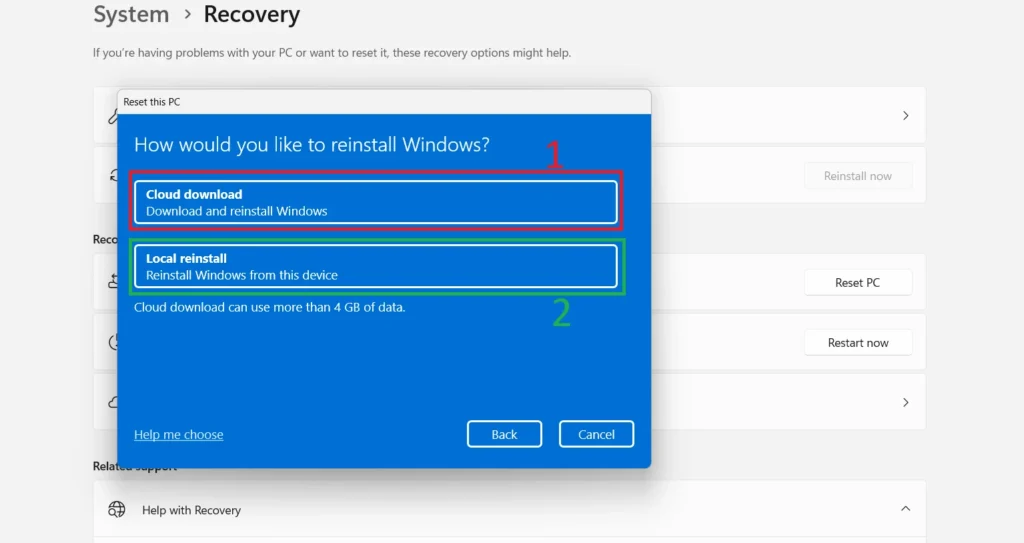
Option 1: Click on “Cloud Download” to reinstall windows with latest version from cloud server. (But take a note that this might take a longer time.)
Option 2 : Click on “Local Reinstall” to reinstall windows with the file already available on PC
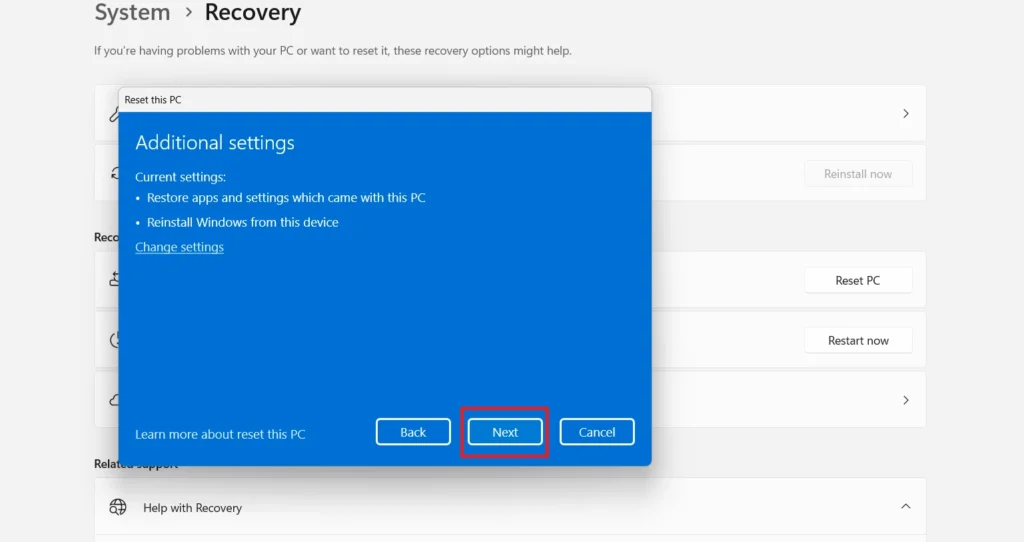
Step 5: Here you can change additional settings of the reset as per your convenience. Click on “Next” to start the Reset.
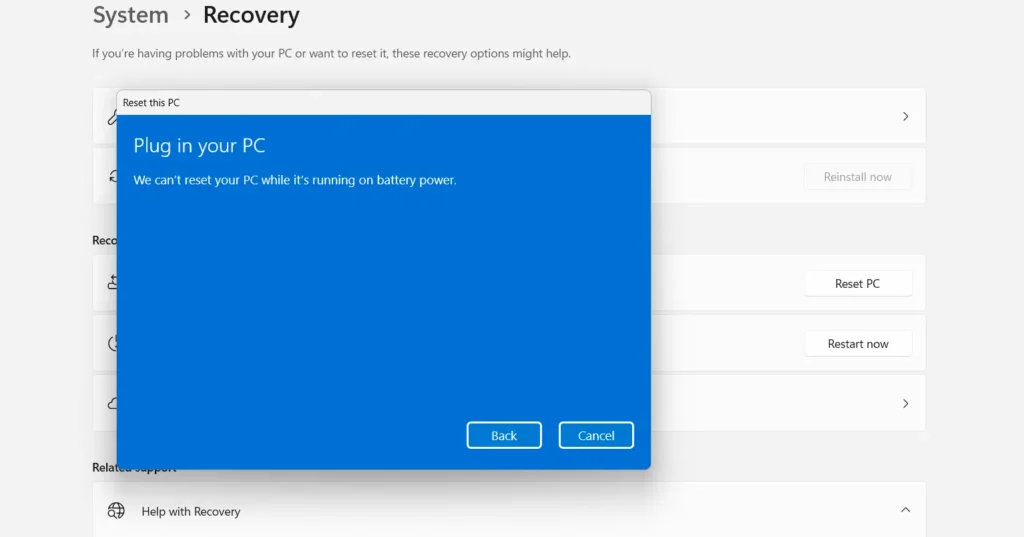
Note: If your device is not connected to charging, then windows will not start the reset. See below image.
Method 2: Reset using Windows Recovery Environment
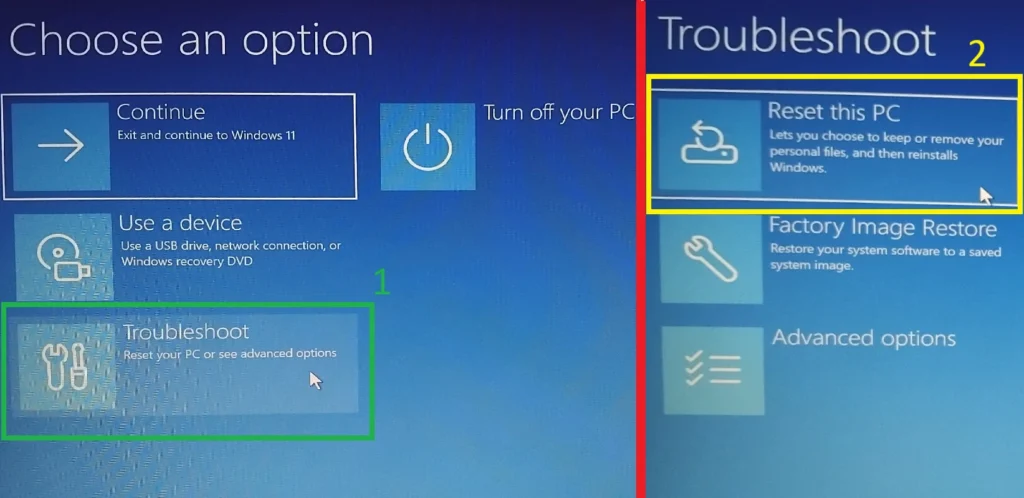
Step 1: Open Windows Recovery environment
Step 2: Navigate to “Troubleshoot” -> “Reset this PC”.
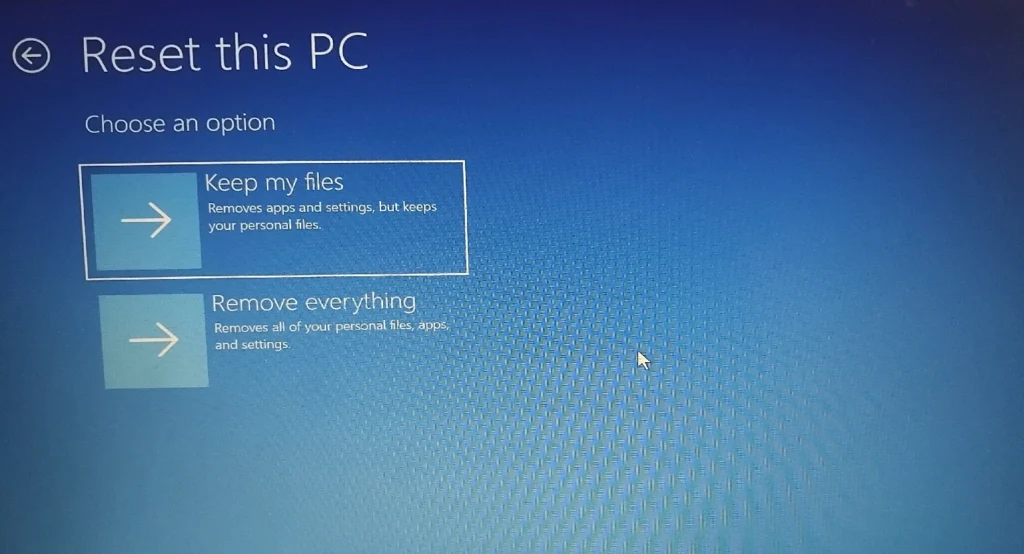
Step 3: Similar in method1, here also you get two options to preserve your files post reset or remove everything. Choose as per your convenience.
Step 4: Choose by which way you would like to reinstall windows 11, Cloud download or Local reinstall
Step 5: Click on ‘Reset’, if you agree with all the mentioned settings or click ‘Cancel’ to abort the reset.