Windows have evolved a lot and so it’s software issues. It tries to resolve them in every new updates, but some critical ones could create problems during startup or impact windows performance. This could also happen if you have any faulty hardware connected.

If you are struggling with issues as mentioned below, then you should access Windows Recovery Environment (WinRE), to troubleshoot and fix them.
- Windows screen stuck during start up
- Issues observed after windows update
- Windows getting slow
You can access WinRE in windows 11 using following methods,
| Methods | How to use ? |
| Power button | Press power button on windows loading screen 2-3 times |
| Shift button | Press Shift Key during Restart |
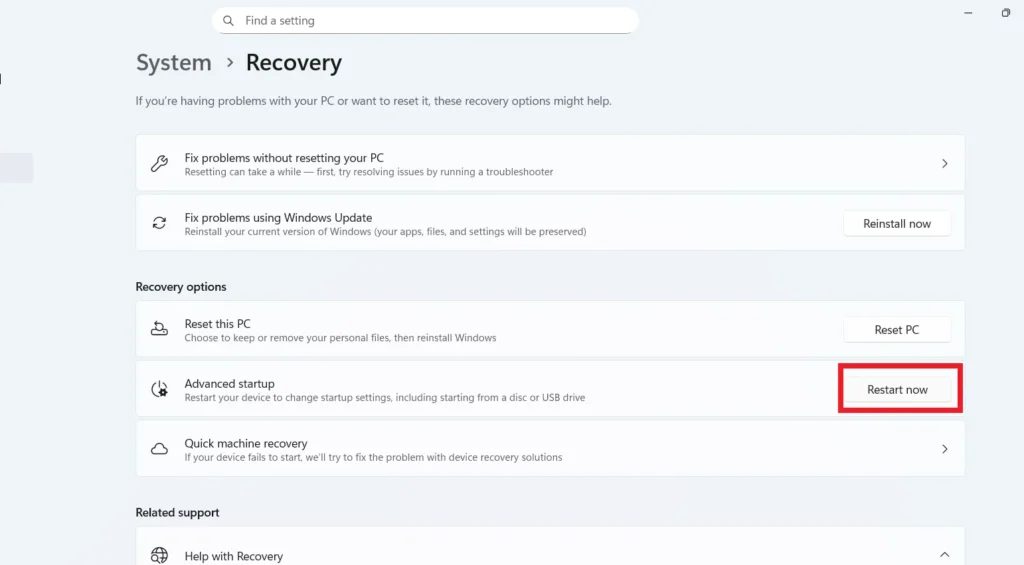
| Settings | Settings > System > Recovery > Advances Startup > Restart |
| HW Recovery button | Manufacturer specified button to press repeatedly after power ON |
| USB Recovery drive or CD/DVD repair discs | Using Installation media on another working machine, you can create USB recovery drive or CD/DVD repair disks. This further can be used to trigger WinRE on non-working device |
Windows can self-trigger to recovery environment if it fails to start properly multiple times.
Using above mentioned methods to access WinRE, detailed instructions are as follows :-
Access WinRE using Power Button
Step 1: Power ON the device
Step 2: When windows/manufacturer logo appears, press power button -> Windows turns OFF.
Step 3: Repeat Step 1 and Step 2.
Step 4: Repeat Step 1 -> Now windows enters into Windows Recovery Environment.
Access WinRE using shift button
Step 1: Go to Start > Power
Step 2: Press and hold shift button and click on restart.
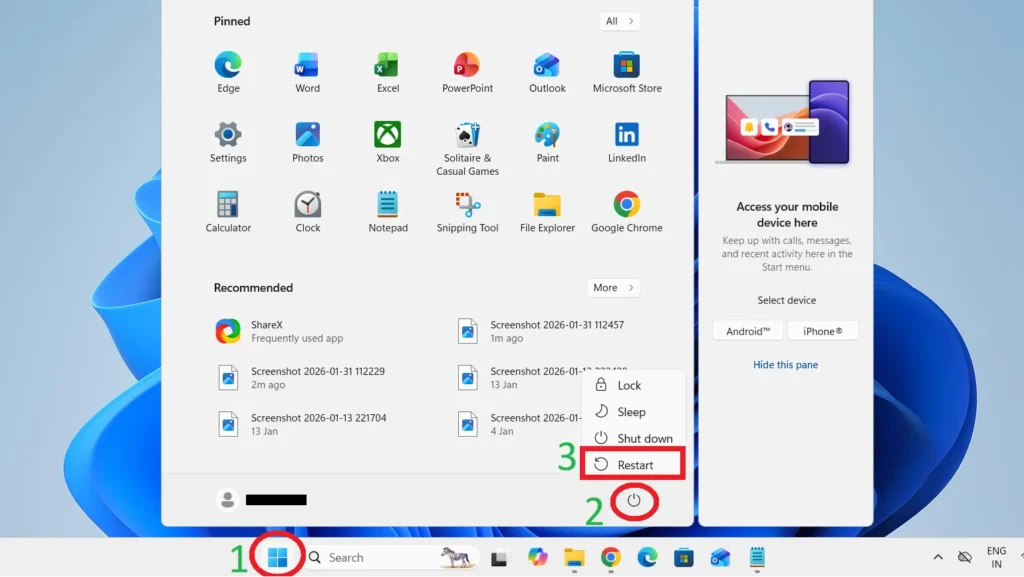
Step 3: Release shift button when you see windows/ manufacturer logo + “Please Wait” on screen -> Now Windows enters into WinRE.
Access WinRE using Settings
Step 1: Search for settings in search bar and click on it.
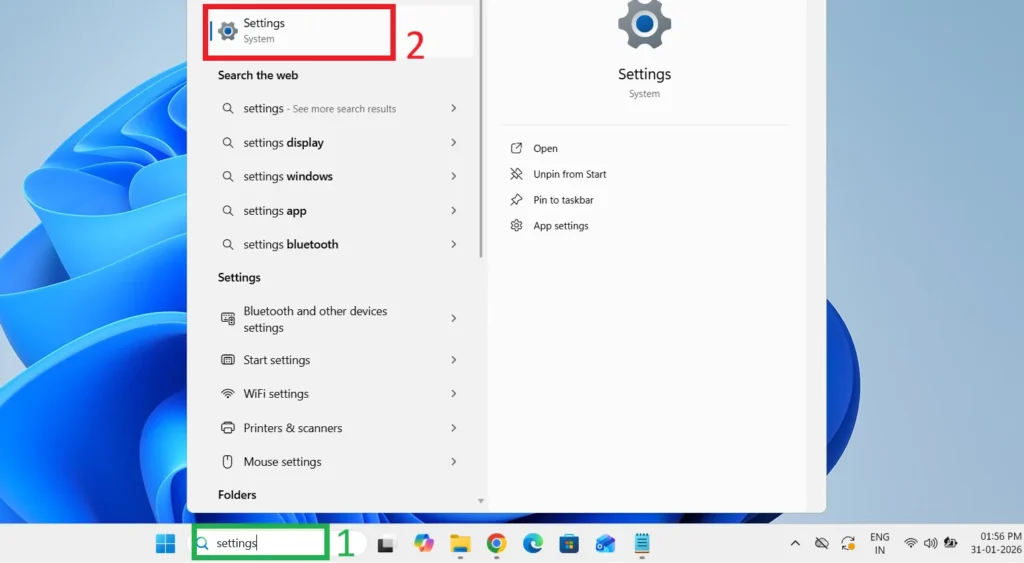
Step 2: Go to System > Recovery
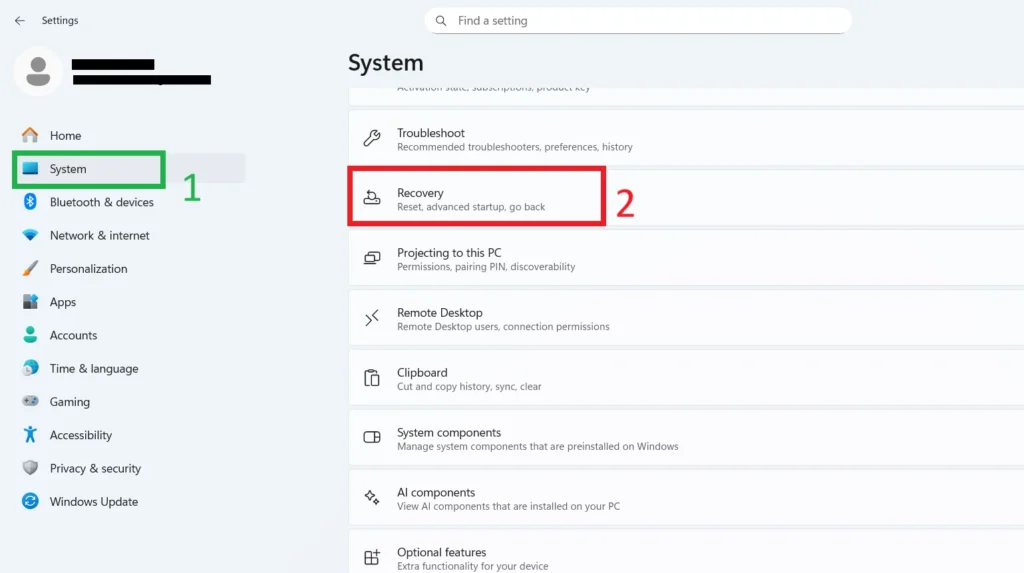
Step 3: Press “Restart Now” on advanced startup tab to enter WinRE after restart.
Access WinRE using HW Recovery Button
Every manufacturer has different HW button or pair of keys to enter into WinRE.
Refer your manufacturer website/guide to find HW recovery button and instructions for same. Listing down HW recovery buttons of popular manufacturers.
| Manufacturer | HW Recovery Button (To press repeatedly after power button) |
| Dell | F12 |
| Asus | F12 / F9 |
| Acer | Alt + F10 |
| HP | F11 |
| MSI | F3 |
Access WinRE using USB Recovery Drive or CD/DVD repair Disks
If you have USB recovery drive or CD/DVD repair disks, then you can access WinRE using following steps:-
Step 1: Connect USB Recovery Drive or CD/DVD repair Disks to the device.
Step 2: Press power button
Step 3: Press the hotkey repeatedly until windows start and then it will enter into WinRE (Hotkey mentioned here may vary by manufacturer, so refer to manufacturers manual)